
4.25Automation
Reference for the Automation service: run a timed sequence of KNX writes and pauses when a KNX group address receives a value.
Automation runs a sequence when a trigger arrives on the KNX bus: a list of steps that either write a KNX value or pause. This page lists every field of the Configure Automations dialog, how it runs, and when to choose it over the Rule gateway or Logic Studio.
#What it does
Each automation has one trigger (a KNX group address and an optional value) and a list of steps. When the trigger arrives, the gateway runs the steps from top to bottom: Send KNX Value writes a value to a group address, Pause waits. Typical uses are a scene that switches several groups one after the other, a pulse that switches something on and off again after a time, and a sequence with delays between devices.
#Which service to use
| Need | Use |
|---|---|
| A fixed sequence of writes with pauses between them, started by one KNX value | Automation |
| "When the value is X, write Y now", with comparisons such as greater than or contains, and no timing | Rule gateway |
| Logic over several inputs, running timers, counters, maths or filters, or a result that must follow its inputs continuously | Logic Studio |
Automation is the simplest way to run a fixed sequence with pauses. It has no conditions other than the trigger value.
#Before you enable it
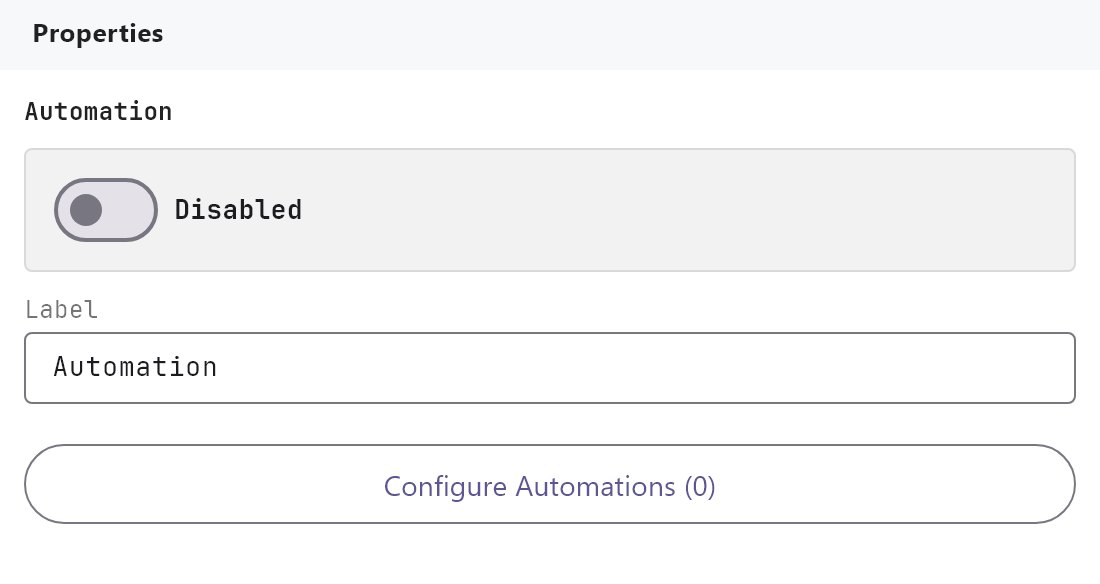
- The service is Disabled by default. Turn Enabled on and deploy the project (see Deploying to a gateway). Each automation also has its own Enabled switch.
- The gateway listens to and writes the bus through its KNX connection, so the KNX engine must be working.
#Settings
| Setting | What it does |
|---|---|
| Enabled | Turns the Automation service on or off. Off by default. |
| Label | The name in the Server tree. Default Automation. |
| Automations | The button Configure Automations (N) opens the Automations Editor. |
#Automations Editor
The editor has two parts: the list of automations with their details at the top, and the steps of the selected automation below. Both lists have Add, Clone, Remove, Up and Down. Import and Export in the header save and load all automations as automations.json; importing replaces the whole list. Cancel and Save Changes only close the dialog.
#Rule Details
| Field | What it does |
|---|---|
| Name | The automation's name. New ones are Automation 1, Automation 2 and so on. |
| Enabled | On by default. |
| Trigger Group | The KNX group address that starts the automation. |
| Trigger Data Type | How the telegram is read: DPT 1.001, 5.001, 5.010, 7.001, 8.001, 9.001, 12.001, 13.001, 14.001 or 16.001. Default DPT 1.001. |
| Trigger Value | The value that starts it. Default 1. Leave it blank to start on any value. |
| On Retrigger | What happens when the trigger arrives again while the sequence is running: Restart from beginning (default), Ignore while running or Cancel without restarting. |
#Steps
A new automation has one step. Each step list entry reads Send 1 -> 1/1/5 or Pause 2 s.
| Field | What it does |
|---|---|
| Step Type | Send KNX Value (default) or Pause. |
| Group Address | Send KNX Value. The group address to write. |
| Data Type | Send KNX Value. The same ten data types as the trigger. Default DPT 1.001. |
| Value | Send KNX Value. The value to write. Default 1. |
| Duration | Pause. A number (0 or more, default 1) with the unit ms, s (default) or min. |
#How it works on the gateway
- The gateway watches incoming KNX write telegrams. A response to a read request does not start an automation.
- A telegram starts an automation when its group matches Trigger Group and, unless Trigger Value is blank, its value equals the Trigger Value. Numbers are compared as numbers.
- The steps run one after another. Each write is sent to the bus before the next step starts. A Pause waits the set time.
- On Retrigger decides what a second trigger does to a running sequence.
Restart from beginningstops the running one and starts again. A pause that is already waiting finishes its time first.Ignore while runningleaves the running sequence alone.Cancel without restartingstops the running sequence and does not start a new one. - If a step writes to the automation's own trigger group, the gateway ignores that echo for about 1.5 seconds so the automation does not start itself. Do not rely on this for other automations: a write to the trigger group of a different automation does start it.
- A sequence that is running when the gateway restarts is lost.
#Example
A "pulse" that switches a gate relay on for 2 seconds and then off:
- Enable Automation and add an automation: Name
Open gate, Trigger Group4/1/1, Trigger Data TypeDPT 1.001, Trigger Value1, On RetriggerIgnore while running. - Step 1: Send KNX Value, Group Address
4/1/2, Data TypeDPT 1.001, Value1. - Step 2: Pause, Duration
2s. - Step 3: Send KNX Value, Group Address
4/1/2, Data TypeDPT 1.001, Value0. - Deploy. A push button that writes 1 to
4/1/1pulses4/1/2for 2 seconds. A second press during the pulse is ignored.
#Tips and common problems
- Nothing happens: the service or the automation is disabled, the Trigger Group is empty or different from the group on the bus, or the Trigger Value does not match the telegram. Clear the Trigger Value to test.
- The sequence starts twice: the trigger group is also written by one of your own steps or by another automation. Use a separate trigger group.
- A conditional action is needed: Automation has no conditions beyond the trigger value. Use the Rule gateway or Logic Studio.
- It must start at a set time: Automation has no time-of-day trigger of its own. It starts only from a KNX write telegram.