
4.3Gateway
The gateway's identity, location, network addresses, KNX address, connection policy, deploy token, time server and the app users, edited under Server > Gateway.
Gateway is the first entry in the Server tab. It describes the box that runs the project: its name, where it is, how clients reach it, what its KNX address is, and who may sign in to the apps. It has no Enabled switch.
#What it does
The values are saved in the project and go to the gateway when you deploy. The Configurator uses the Local IP Address as the address to deploy to. The gateway uses the KNX address for its KNX bridge, the latitude, longitude and timezone for the Solar Engine and prayer times, and the local IP address as the realm of its SIP server.
#Before you start
- Give the gateway a fixed IP address on the site network, for example with a reservation in the router. A changing address breaks deploys and the apps.
- Know the gateway's KNX individual address. Use one that is free on the installation.
- The project wizard already asks for most of these values. Come back here to change them later.
#Settings
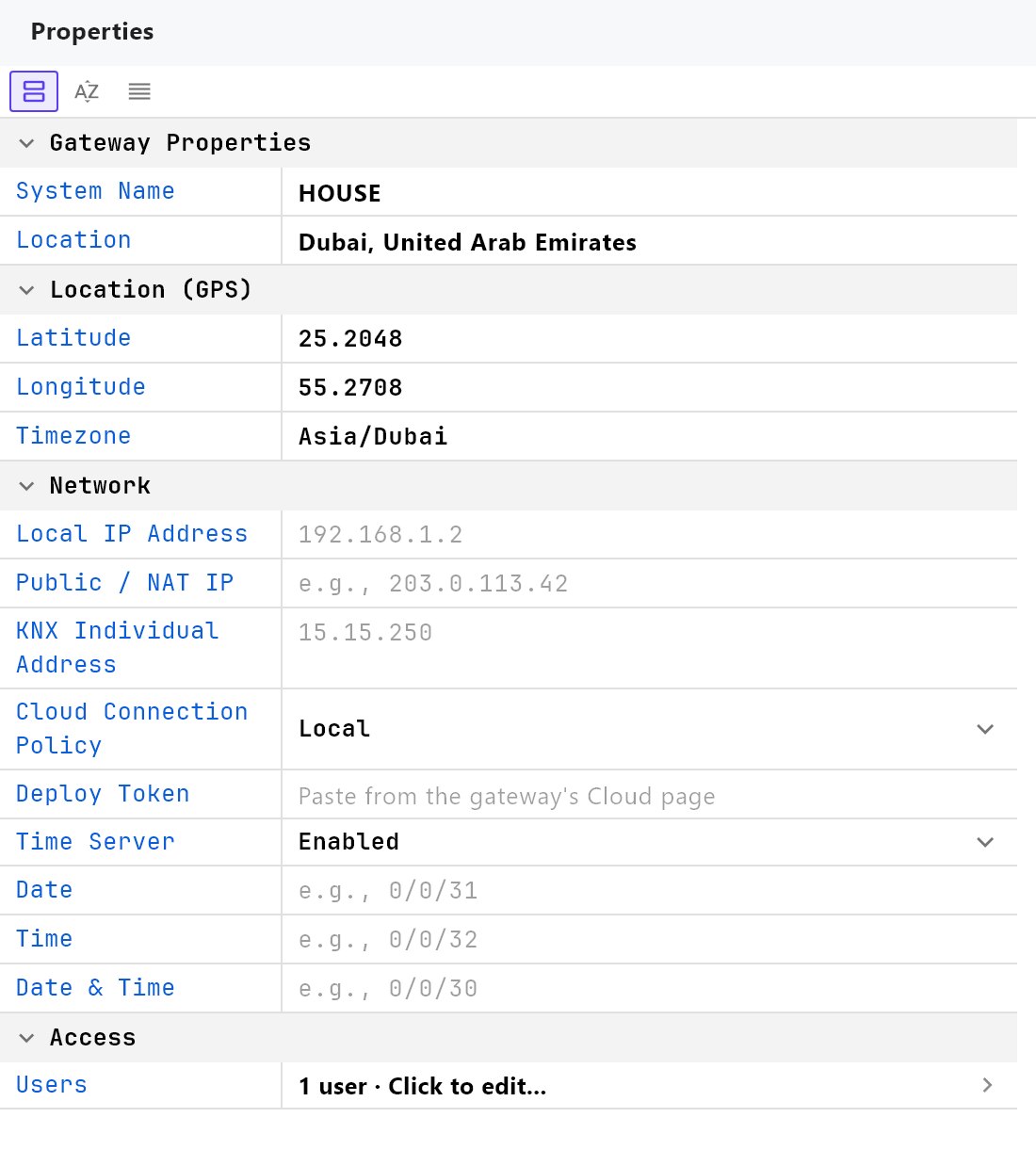
The properties are shown as a table with a name on the left and the value on the right. The three small buttons above the table switch the view between Categorized (the default), Alphabetical and Declaration order. A click on a group heading collapses it. Edits are part of the project: they are saved by Save (or by Autosave, see Settings) and reach the gateway when you deploy.
#Gateway Properties
| Setting | What it does |
|---|---|
| System Name | The name of the system. It is shown in the Project Manager, in the Server tree and in the apps. |
| Location | Free text for the site or villa, for example Dubai, United Arab Emirates. It is informational only. |
#Location (GPS)
| Setting | What it does |
|---|---|
| Latitude | GPS latitude as a decimal number, for example 25.2048. Used by the Solar Engine and prayer times. |
| Longitude | GPS longitude, for example 55.2708. |
| Timezone | The site's timezone, for example Asia/Dubai or UTC+4. See the note below. |
If the project was made with the wizard, the country, city, latitude, longitude and timezone are already filled in from the city you picked.
#Network
| Setting | What it does |
|---|---|
| Local IP Address | The gateway's IP address on the site network, for example 192.168.1.20. The Configurator deploys here. |
| Public / NAT IP | Optional. For a site that uses Local + Remote: after you forward the ports on the router, type the router's public IP address here. It is not detected for you. |
| KNX Individual Address | The gateway's own address on the KNX bus, written area.line.device, for example 15.15.250. |
| Cloud Connection Policy | How the apps reach the gateway. See the table below. |
| Deploy Token | The pairing with the gateway. See Deploy token. |
| Time Server | Enabled or Disabled. When enabled, three more rows appear: Date, Time and Date & Time. See Time server. |
#Cloud Connection Policy
| Option | Meaning |
|---|---|
| Local (default) | The apps connect on the local network only. |
| Local + Cloud | The apps connect locally. When the local connection fails, they try the gateway through Veltnova Cloud. |
| Local + Remote | The apps connect locally. When that fails, they try to reach the gateway directly through your router, through its forwarded ports. |
| Cloud | The apps connect through Veltnova Cloud. |
When Local + Remote is selected, a note appears: Remote access requires two ports forwarded to this gateway on the site's router: 8889/TCP and 8189/UDP. Without both, remote viewers fall back to Cloud, if it is enabled, or cannot reach the camera away from the local network.
#Deploy token
The gateway only accepts projects from a Configurator that has its deploy token. Open the gateway console in a browser, go to the Cloud tab, find Deploy Pairing and click Copy deploy token. Paste the token into Deploy Token here. You do this once per gateway. Deploy uses the token automatically from then on, instead of asking for it each time. If the token on the gateway is regenerated, paste the new one. See Gateway console and logs.
#Time server
With Time Server enabled, the gateway writes its current date and time to the KNX bus once a minute, for other devices on the bus to follow. Enter the group addresses in the three rows that appear:
| Row | What the gateway writes |
|---|---|
| Date | The date (DPT 11.001), for example to 0/0/31. |
| Time | The time of day (DPT 10.001), for example to 0/0/32. |
| Date & Time | Date and time in one telegram (DPT 19.001), for example to 0/0/30. Some bus devices expect this form. |
A row left empty is skipped. The KNX engine must be running, and the time is the project's local time (see the timezone note).
#App users
The Users row (under Access) lists the people and panels that may sign in to the apps. It shows Click to edit..., or the number of users. Click it to open the Users dialog. The users are part of the project and become active on the gateway when you deploy. On deploy, every user is given the role user. App users are not gateway administrators. The gateway console has its own administrator login.
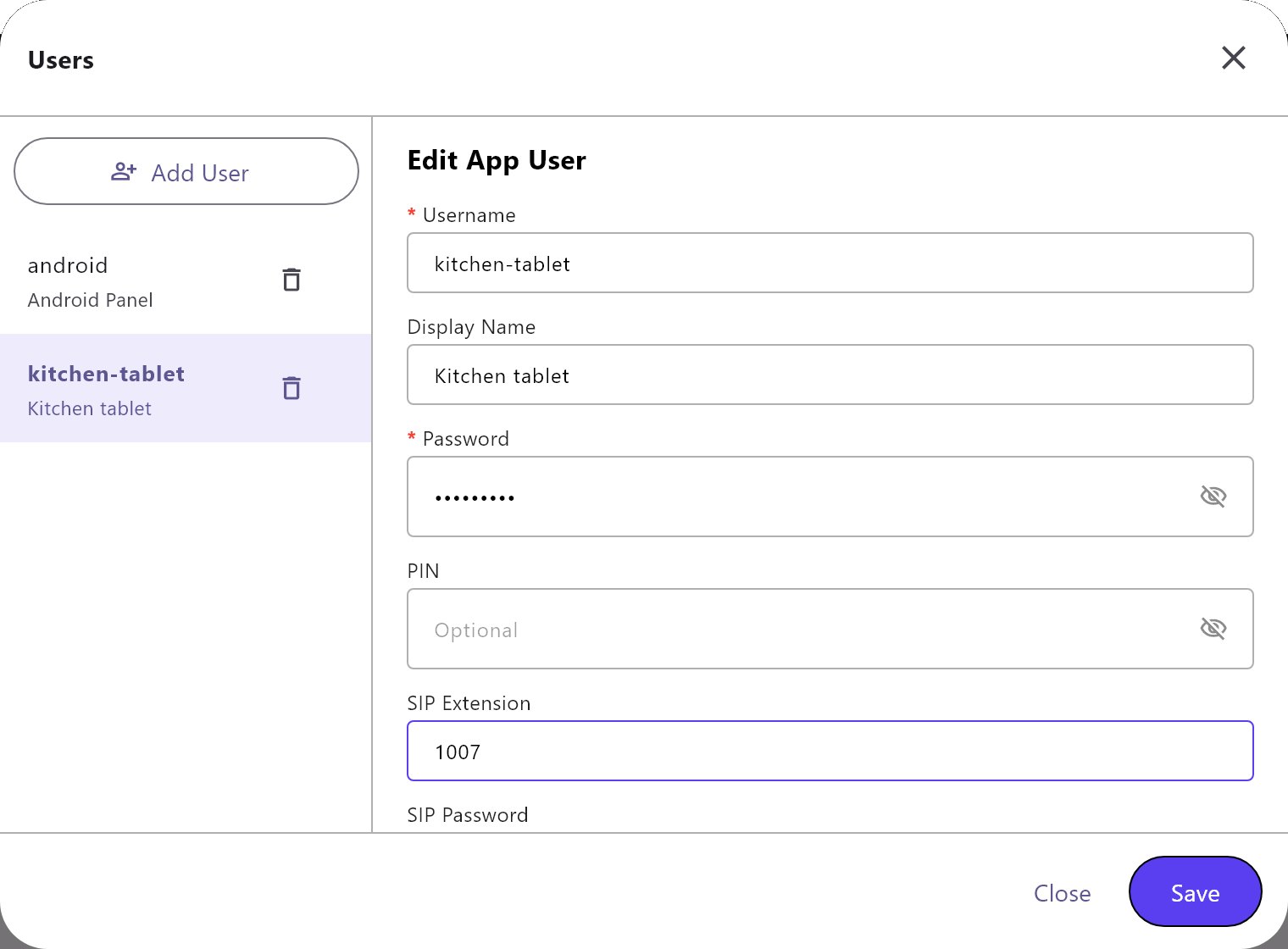
The list is on the left, with Add User on top and a trash icon on each user. Click a user to edit it on the right. A new user is shown at once, ready for editing. The first user is created in the project wizard.
| Field | What it does |
|---|---|
| Username | Required. Must be different for every user, ignoring upper and lower case. |
| Display Name | The name shown in lists. If empty, the username is used. |
| Password | Required. The eye icon shows or hides it. You can change it at any time. |
| PIN | Optional. Used by objects marked Require PIN. |
| SIP Extension | The user's intercom extension, for example 1007. If empty, the user has no extension and does not take part in intercom calls. Give every user a different extension. |
| SIP Password | The password the app uses to register its extension. If empty, it is the same as the extension. |
| Idle Return | Off by default. Sends the app back to a page after a period without use. |
| Idle Seconds | Default 60. How long without use before the app goes back. |
| Return Page | The page to go back to. Choose a page of the project from the list. |
Click Save to leave the dialog. It checks that every user has a username and a password and that no username is used twice, and shows a message at the bottom if not. Close (or the X) leaves the dialog without checking. The edits you made are already in the project.
#SIP extensions
With the SIP Gateway enabled, the gateway creates an intercom account for every user that has an extension. For ring groups and door stations see Intercom and door stations. The accounts on the gateway's SIP server exist only while the SIP Gateway is enabled.
#Idle return
When Idle Return is on for the signed-in user, the app goes to the Return Page after Idle Seconds without use.
- The Return Page list shows the project's pages, grouped by panel.
- If the page is empty or has been deleted, the Veltnova client goes to the first page.
- In the Veltnova client, the countdown is paused while a call is ringing or in progress and starts again when the call ends.
#How it works on the gateway
- KNX address. On every deploy the gateway rebuilds its KNX bridge from this address and reserves the addresses after it for ETS tunnelling clients. If the field is empty or not a valid
area.line.deviceaddress, the gateway uses1.1.250instead. - Public / NAT IP. With a Remote policy the gateway also asks a public STUN server for its public address at start, after every deploy and at intervals, and keeps it in its own copy of the project.
- Local IP Address. Also used as the realm of the gateway's SIP server. The Configurator deploys to port
3127unless you typeaddress:portin the field. - Time Server. The gateway writes the three group addresses once a minute, on the minute.
#Example
A villa in Dubai with remote access:
- Open Server > Gateway. Set System Name
Villa Marinaand LocationDubai, United Arab Emirates. - Set Latitude
25.0657, Longitude55.1713and TimezoneAsia/Dubai. - Set Local IP Address
192.168.1.20, KNX Individual Address15.15.250and Cloud Connection PolicyLocal + Remote. - Forward
8889/TCPand8189/UDPon the router to the gateway, and type the router's public IP address in Public / NAT IP. - Paste the Deploy Token from the gateway console.
- Deploy.
#Tips and common problems
- Deploy cannot reach the gateway: check Local IP Address. If it is empty the Configurator tries
192.168.1.15. See Common problems. - Deploy says a deploy token is required: the token is missing or was regenerated. Paste the current one in Deploy Token.
- A user cannot sign in after being added: users exist on the gateway only after a deploy. Deploy again.
- The Users dialog will not close with Save: read the message at the bottom. A user without a username or a password, or two users with the same username, stops it.
- An app does not ring on an intercom call: check that the user has a SIP extension, that the SIP Gateway is enabled and that the project was deployed.
- Sun or prayer times are off by hours: check Latitude, Longitude and the timezone note above.
- The Solar Engine says no location is configured: Latitude and Longitude are empty or not numbers.
- Remote camera does not work from outside: both router ports in the note are needed, and the policy must contain Remote.