
4.16Switch schedule master
The gateway service that turns Switch objects on and off, and opens and closes Roller Shutters, at the times set in their Time Schedule, even when no app is open.
The Switch schedule master is the gateway service that runs Time Schedules. Each Switch object can have weekly on and off periods. This service is what makes the gateway send them. You find it under Server > Engines > Internal services > Switch Schedule Master.
#What it does
- Checks every second whether a period starts or ends on any Switch object.
- At a period's From time, writes ON to the object's group address. At its To time, writes OFF.
- Runs on the gateway, so it works with no app open and no Configurator connected.
#Before you enable it
- The Switch object must use Protocol
KNXand have a Group Address. - The Switch object must have Time Schedule set to Enabled. See Switch.
- The KNX engine must be running, because the schedule is a KNX write.
- Set the gateway's Timezone correctly under Server > Gateway, because periods follow the gateway's local time.
#Settings
| Setting | What it does |
|---|---|
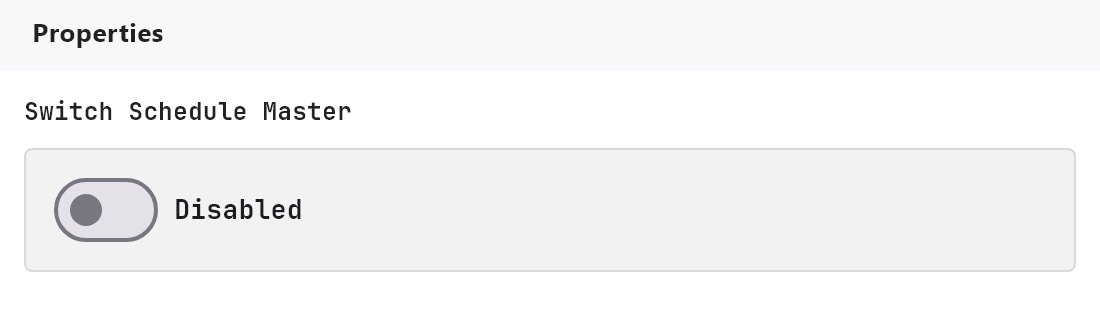
| Enabled | Off by default. The gateway runs no schedules unless this is on in the deployed project. |
There are no other settings. The periods themselves belong to each Switch object, not to this service.
#How schedules are created and stored
Each Switch with Time Schedule enabled has a list of periods. A period has a name, an on/off tick, the weekdays it applies to, a From time (ON) and a To time (OFF), in hours and minutes.
- In the apps. A Switch with Time Schedule enabled opens its panel with Configure Time. Periods saved there are stored on the gateway, up to 64 per object, and appear in other open apps straight away.
- In the Configurator. On a Switch with Time Schedule enabled, Configure Timers (n) opens an editor with the same fields. It starts a new period at 10:30 to 12:30.
- On deploy. The gateway keeps the periods it already holds for an object, and ignores the periods in the project you deploy. The periods in the Configurator are therefore used only the first time an object reaches the gateway. After that, change them in the app. Turning Time Schedule on or off for an object is still a Configurator setting and is applied on each deploy.
#How it works on the gateway
- A period fires in the exact minute of its From or To time, on a weekday that is ticked and with the period ticked on. Each time fires once per day. The gateway does not catch up on a missed minute, for example if it was restarting then.
- Both the On and the Off time must fall on a ticked weekday. A period that crosses midnight, such as 22:00 to 06:00, switches off at 06:00 only if that following weekday is also ticked.
- Times follow the project's timezone. If the Solar engine uses a custom location, its timezone is used instead of the gateway's.
- The gateway runs schedules for Switch objects and for Dimmer Light objects that have Time Schedule on. For a dimmer the schedule only switches fully on or fully off.
- It also runs schedules for Roller Shutter objects with Time Schedule on: each period opens and closes the shutter at a clock time or at dawn, sunrise, sunset or dusk. Unlike a switch, a shutter event the gateway missed while it was off runs when it is back, up to 10 minutes late. See Roller Shutter.
- A schedule write is a KNX write of 1 (ON) or 0 (OFF) as DPT 1.001 to the object's Group Address. It does not use the status address and does not check the current state.
- Objects bound to Zigbee, WiFi or MQTT, or without a group address, are skipped.
#Example
A pool pump on a switching actuator, running from 08:00 to 16:00 on weekdays.
- Place a Switch object. Set Protocol
KNX, Group Address1/2/4and Time ScheduleEnabled. - Under Server, enable Switch Schedule Master.
- Deploy the project.
- In an app, open the pump's panel and choose Configure Time. Add a period from
08:00to16:00and tick Monday to Friday.
At 08:00 the gateway writes 1 to 1/2/4, and at 16:00 it writes 0.
#Tips and common problems
- The schedule never fires. Check that the master is enabled and deployed, the object has Time Schedule enabled, the weekday and the period are ticked on, and the Switch uses KNX with a group address. Then check the gateway's timezone.
- Periods set in the Configurator do not change after a redeploy. The gateway keeps its own. Edit them in an app.
- Times are an hour off. See how the timezone is read on the Solar engine page.
- Run Test. While Run Test is on in the Configurator and the master is enabled, your PC also runs the schedules of the on/off Switches in the project and sends real telegrams. This is a test, not a replacement for the gateway.