
3.3Switch
An on/off or push-button control for one KNX or Zigbee output, such as a light, a socket or a relay.
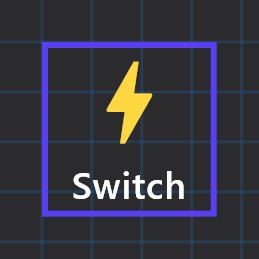
The Switch is the basic control object. It shows an On or Off icon for one output and sends an ON or OFF command to that output when someone taps it. It can also act as a push button that sends different commands when it is pressed and released.
#When to use it
- Plain lights, sockets, relays, pumps and gates that have a single on/off group address.
- Push-button behaviour, such as a pulse to a gate opener or a doorbell relay (see the Switching Type options below).
- Timed on/off periods through the Time Schedule.
For brightness control use a Dimmer Light; for colour use an RGB Lamp.
#Properties
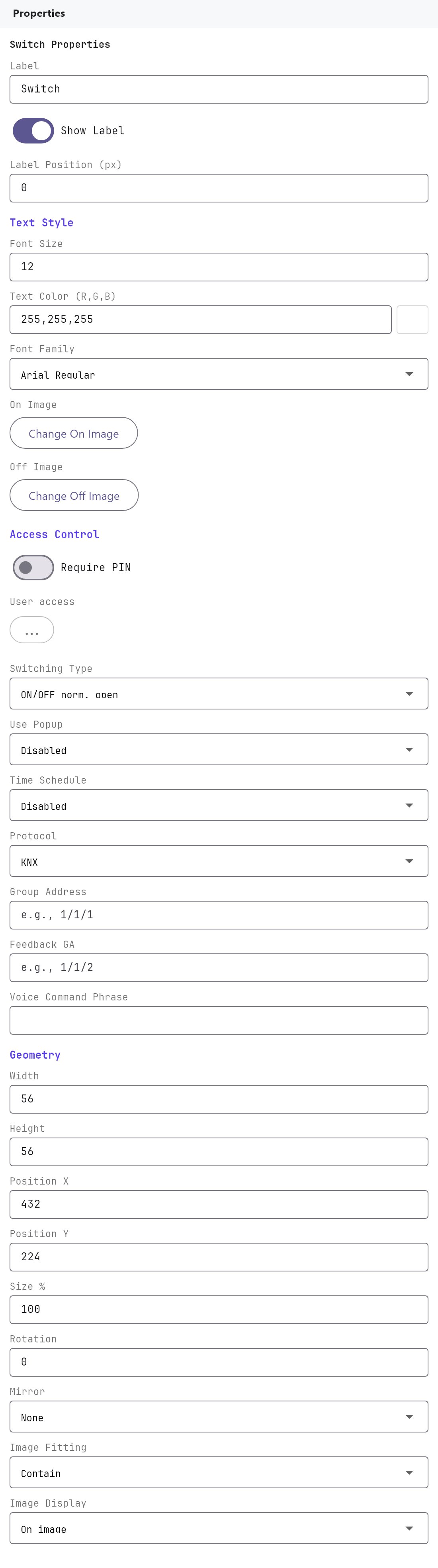
The Label, Text style, On/Off image, Access control, Voice and Position and size fields are shared with most objects and are described on Common properties. The fields below are specific to the Switch.
#Behaviour
| Property | What it does |
|---|---|
| Switching Type | How a tap or press is turned into KNX telegrams. Default ON/OFF norm. open. See the table below. |
| Use Popup | Disabled (default) or Enabled. When enabled, a tap opens a small panel with ON, OFF and Status instead of toggling at once. Only shown for the two ON/OFF switching types. |
| Time Schedule | Disabled (default) or Enabled. When enabled, a Configure Timers button appears that opens the weekly timer editor. Only shown for the two ON/OFF switching types. |
Switching Type options:
| Option | What the object sends |
|---|---|
| ON/OFF norm. open (default) | A tap toggles the output. Sends ON if the object is currently off, OFF if it is on. |
| ON/OFF norm. closed | In the current apps it behaves exactly like norm. open: a tap toggles. |
| ON on pression | ON when pressed. Nothing on release. |
| OFF on pression | OFF when pressed. Nothing on release. |
| ON on pression, OFF on release | ON when pressed, OFF when released. Use it for hold-to-run or pulse outputs. |
| OFF on pression, ON on release | OFF when pressed, ON when released. |
| Value on pression | The object's current numeric value when pressed, instead of ON or OFF. |
| Value on pression and on release | The same numeric value on press and again on release. |
| Value on release | The numeric value when released. |
The three Value options send a number rather than a bit. The Switch panel has no field in which to enter that number, so treat them as special cases and use one of the other six modes for ordinary switching.
#KNX addresses
| Property | What it does |
|---|---|
| Protocol | KNX (default), Zigbee, WiFi or MQTT. See "How it behaves in the apps" for what each one drives. |
| Group Address | The group address the command is written to, as a one-bit switching address (DPT 1.001), for example 1/1/10. With Protocol Zigbee this becomes a picker of On/Off values from the Zigbee devices on the gateway (named like Hallway Light - On/Off (Gang 1)); with WiFi or MQTT it is a free-text device ID. |
| Status Group Address | KNX only. The group address that reports the real state of the output, for example the actuator's status object. Optional but recommended. |
#Time schedule timers
With Time Schedule enabled, Configure Timers (n) opens an editor with a Master enable switch, a row of weekday buttons (Sun to Sat), and a list of periods for the chosen day. Each period has an on/off tick, a From [ON] time and a To [OFF] time (hours and minutes; a new period starts at 10:30 to 12:30), and a delete button. Buttons at the bottom add a period, copy the chosen day's periods, paste them onto another day, delete the whole day, or close the editor.
#How it behaves in the apps
Icon. The icon shows the On image while the status value is above zero and the Off image otherwise. The app takes the state from the newest telegram seen on the Status Group Address or the Group Address, so a change made from a wall switch shows up too.
A status indicator. A Switch with a Status Group Address and no Group Address only shows the state: its icon follows the status, and a tap does nothing, with no message. Use this for the status icons of an overview page (a light, fan or AC that is controlled elsewhere).
Tap with an ON/OFF type. The app flips the icon straight away, then writes ON or OFF (DPT 1.001) to the Group Address. If the write fails the icon goes back and a message appears. A second tap within a quarter of a second is ignored.
Popup. With Use Popup enabled the tap opens a panel with ON, OFF and a Status box that shows the current state. A switch with Time Schedule enabled opens the same panel even when Use Popup is disabled, and the panel then also shows Configure Time, so people can edit the timers in the app.
Push-button types. The command is sent the moment the finger goes down, and the release command (if the type has one) is sent when the finger lifts or the touch is cancelled. These types act on press and release instead of a click, and they do not use the popup.
Time schedule. The gateway runs the schedule, not the app, so it works with no app open. At each period's From time on a ticked weekday it writes ON (1) to the Group Address, and at the To time it writes OFF (0). It runs only for KNX switches with a Group Address, and only while Switch Schedule Master is enabled under Server > Internal services. Timers saved from the app's Configure Time panel are stored on the gateway (up to 64 per object) and are kept when you deploy the project again.
Protocols. KNX switches work in the Veltnova client. A Zigbee switch toggles too: a tap turns that gang of the Zigbee device on or off through the gateway, and the icon shows the device's reported state (a gang of a multi-gang switch, including gangs 3 and up, is found from the Zigbee value the switch is bound to). A Switch bound to WiFi or MQTT does nothing when tapped.
Voice. Switches with a Voice Command Phrase are exposed to the voice integrations (KNX-bound objects only).
#Example
A corridor light on a switching actuator.
| Field | Value |
|---|---|
| Label | Corridor light |
| Switching Type | ON/OFF norm. open |
| Use Popup | Disabled |
| Time Schedule | Disabled |
| Protocol | KNX |
| Group Address | 1/1/10 |
| Status Group Address | 1/1/11 |
| Voice Command Phrase | Corridor light |
| Room | Hallway |
A tap sends ON or OFF to 1/1/10; the icon follows the actuator's status on 1/1/11.
For a gate opener that needs a pulse while the button is held, add a second Switch labelled Open gate, set Switching Type to ON on pression, OFF on release and Group Address to 1/6/1.
#Tips and common problems
- The icon does not follow the real device. Check that the Status Group Address is the actuator's status object and that it sends one-bit values. Without a status address the icon follows telegrams on the Group Address only.
- The icon is wrong right after a deploy. After a deploy, and when the KNX connection restarts, the gateway reads every configured group address once. A status object that does not answer read requests will stay unknown until it next changes.
- Use Popup or Time Schedule are missing. They are hidden for all push-button and Value switching types. Switch back to an ON/OFF type to see them.
- The schedule never fires. Check that Time Schedule is Enabled, the weekday is ticked, the period is ticked on, and Switch Schedule Master is enabled on the gateway. Times follow the Timezone set in the gateway properties, so check that it is correct for the site.
- Test from the Configurator. Turn on Run Test in the toolbar and click the Switch on the canvas to send a real telegram through your PC's KNX connection. See KNX basics for installers.