
3.5RGB Lamp
A colour control for RGB or RGBW lamps, with a colour wheel popup, bound to KNX channels or to a Zigbee light.
The RGB Lamp is a light icon that opens a colour wheel when tapped. With KNX, each colour channel (red, green, blue and optionally white) has its own group address and receives a percentage value. With Zigbee, you pick one paired light and the gateway handles the colour.
#When to use it
- KNX RGB or RGBW actuators that expose one group object per colour channel.
- Zigbee RGB or RGB plus colour-temperature bulbs and strips already added to the gateway's Zigbee interface.
For plain brightness control use a Dimmer Light.
#Properties
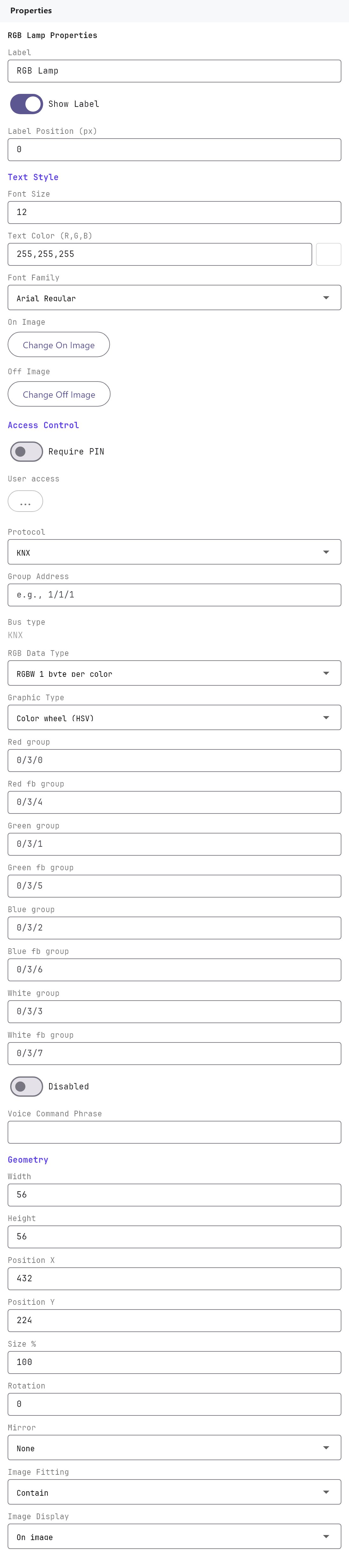
Label, Text style, On/Off images, Access control, Voice and Position and size work as described on Common properties. The fields below are specific to the RGB Lamp. The panel changes with the Protocol: the KNX channel fields are shown for KNX, and a single Zigbee Light picker replaces them for Zigbee.
#Protocol and lamp type
| Property | What it does |
|---|---|
| Protocol | KNX (default) or Zigbee. WiFi and MQTT are also listed, but the apps do not drive an RGB Lamp over them. |
| Bus type | Read-only. Shows the Protocol. |
| Zigbee Light | Zigbee only. A searchable list of the RGB lights configured on the gateway's Zigbee interface. If it says No Zigbee RGB lights configured yet, add the light there first. |
| RGB Data Type | KNX only. Default RGBW 1 byte per color. Options: RGB 1 byte per color, RGB 3 bytes (DPT 232.600), RGBW 1 byte per color, RGBW 6 bytes (DPT 251.600), WHITE (Temperature 1 byte), HSV 1 byte per color, YX 6 bytes (DPT 242.600), WHITE (Temperature 2 bytes float), WHITE (Temperature 2 bytes int DPT 7.600). |
| Graphic Type | KNX only. Color wheel (HSV) (default) or Color wheel. |
| External switch | KNX only. Disabled (default) or Enabled. Marks that the lamp can also be switched from a wall switch. |
#KNX channel addresses
| Property | What it does |
|---|---|
| Red group | Group address that receives the red level, 0 to 100 percent (DPT 5.001). |
| Red fb group | Group address that reports the red level. |
| Green group, Green fb group | The same for green. |
| Blue group, Blue fb group | The same for blue. |
| White group, White fb group | The same for the white channel. Shown only for RGBW data types. |
#How it behaves in the apps
KNX lamp, tap. Tapping the icon opens a popup. It contains:
- a colour wheel, where the angle sets the hue and the distance from the centre sets the saturation;
- an RGB brightness slider with - and + buttons (5 percentage points per press);
- a W slider, shown when the lamp has a white channel (an RGBW data type, or a White group or White fb group address is filled in);
- a power button (ON/OFF) and an Apply button.
Sending colour. The colour is sent when you lift your finger from the wheel, release the brightness slider, press + or -, or press Apply. The app converts hue, saturation and brightness into red, green and blue percentages and writes each one (DPT 5.001) to its own group address. Channels with no address are skipped. If no channel address is filled in at all, the popup says to set the RGB group addresses. The W slider writes the White group on release.
Power. There is no separate on/off group address on a KNX RGB Lamp. The power button turns the lamp off by writing 0 to every colour channel, and on by writing the colour again.
Feedback. The popup does not read colours back from the feedback groups, so the wheel does not show the lamp's current colour. It reads the white level when it opens. The feedback groups are used when a voice assistant asks for the lamp's colour. The dashboard icon does not show the lamp's on or off state for a KNX RGB Lamp.
Zigbee lamp. Tapping a Zigbee RGB Lamp opens a similar wheel popup with Color and White modes (White is a warm-to-cool slider) and a Brightness slider. The popup starts from the light's last reported colour, brightness and on/off state.
Voice. KNX RGB Lamps with a Voice Command Phrase are published to the voice integrations as colour lights. A colour request writes the red, green and blue groups.
#Example
An RGBW LED strip on a KNX RGBW actuator.
| Field | Value |
|---|---|
| Label | Cove lighting |
| Protocol | KNX |
| RGB Data Type | RGBW 1 byte per color |
| Red group / Red fb group | 4/1/2 / 4/1/3 |
| Green group / Green fb group | 4/1/4 / 4/1/5 |
| Blue group / Blue fb group | 4/1/6 / 4/1/7 |
| White group / White fb group | 4/1/8 / 4/1/9 |
Choosing pure red on the wheel writes 100 to 4/1/2 and 0 to 4/1/4 and 4/1/6.
#Tips and common problems
- No colour change. Check that the actuator is in a mode where it accepts separate 1-byte channel values. Many actuators have an ETS parameter for the colour format. If the actuator expects a combined colour value (for example DPT 232.600), it may not respond to separate channel writes.
- The W slider is missing. Pick an RGBW data type or fill in a White group.
- The wheel always opens at the same colour. This is normal for KNX: there is no single "current colour" to read back.
- The icon does not show the on state. A KNX RGB Lamp has no on/off status address, so its dashboard icon does not change with the lamp. Zigbee lamps show their state.
- Import your ETS group addresses for autocomplete; see KNX basics for installers.