
3.9Analog Value
Shows a live number, such as a temperature or a power reading, as plain text on the dashboard.
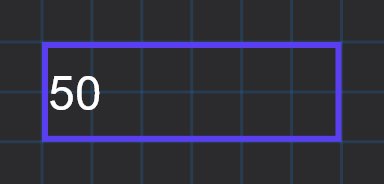
The Analog Value object displays one number as text: a KNX value, a Modbus datapoint, a Zigbee reading or a calculated system value. It is read-only. There is no icon, only the text.
#When to use it
Use it for any measurement you want to read at a glance: room temperature, humidity, lux, power in watts, tank level, or a system value such as the next prayer time. To change a value instead of only showing it, use a Dimmer Light or an HVAC object. To show a value as a gauge image or a text that changes with thresholds, use a State Action. To plot a value over time, use a Graph.
#What you need first
- KNX source: the group address of the sensor or status object, imported from your ETS CSV, and the KNX engine enabled. See KNX basics for installers.
- System Object source: the value must exist first, for example a Modbus datapoint (see Modbus devices and datapoints), a Zigbee device, a Rule Gateway value, or one of the manager services.
#Properties
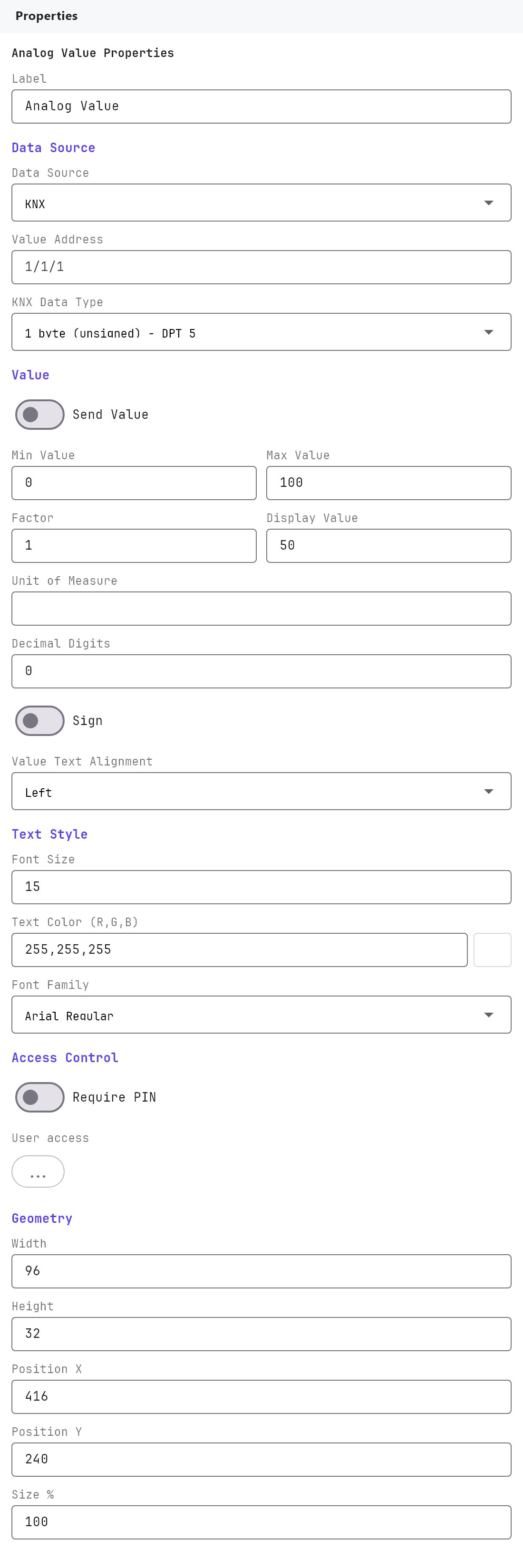
The Label, Text Style, Access Control, Width, Height, Position X, Position Y and Size % fields work as described in Common properties. On this object the Label is only a name in the Configurator tree: it is not shown on the dashboard. Font Size defaults to 24, Text Color to 255,255,255 and Font Family to Arial Regular. Rotation, Mirror, Image Fitting and Image Display are hidden because the object has no image.
#Value source
| Property | What it does |
|---|---|
| Protocol | Where the value comes from: KNX (default), Zigbee, WiFi, MQTT or System Object. Changing it also changes Data Source to the same choice. |
| Data Source | The same choice again, with one extra option, Internal. Keep it equal to Protocol. The apps read live values from KNX and System Object sources. |
| Value Address | The KNX group address of the value, for example 2/1/5. Shown for every source except System Object. |
| KNX Data Type | How the gateway decodes the telegram. Options: 1 byte (unsigned) - DPT 5 (default), 1 byte (signed) - DPT 6, 2 bytes (unsigned) - DPT 7, 2 bytes (signed) - DPT 8, 2 bytes floating point - DPT 9, 4 bytes floating point - DPT 14. It must match the DPT of the group object. The DPT 5 option is read as a percentage (raw 0 to 255 becomes 0 to 100). |
| System Value | Shown instead of Value Address and KNX Data Type when the source is System Object. Pick from Solar Values, Muslim Prayer Times, Christian Events, This Display (the temperature and humidity measured by the display the app runs on, shown only on a display that has the sensors: see Veltnova wall displays), and (only when configured) the groups Modbus RTU, Zigbee, Network I/O, Rule Gateway, Watering, Genset Manager, UPS Manager and Solar Manager. |
#Value handling and display
| Property | What it does |
|---|---|
| Send Value | Switch, off by default. Saved with the object, but it has no effect: the Analog Value never writes to the bus. |
| Min Value / Max Value | Default 0 and 100. Saved with the object, but the apps do not use them: values are not clamped. |
| Factor | Default 1.000 (step 0.001). The live value is multiplied by this before it is shown. Use 0.1 for a device that reports 254 for 25.4. It is not applied to Display Value. |
| Display Value | Default 50. The number shown in the Configurator. In the apps it is shown only when the object has no source at all (no Value Address and no System Value). An object with a source shows -- until its first real value arrives. |
| Unit of Measure | Text added after the number, for example °C. Empty by default. |
| Decimal Digits | 0 to 10, default 0. The number is rounded to this many decimals. |
| Sign | Off by default. With Sign off, a negative value is shown without its minus sign. Turn it on for anything that can go below zero. |
| Hide when 0 | Off by default. When on, the apps show nothing at all (no number and no unit) while the value is exactly 0, and also before the first value has arrived. Use it for a countdown or a counter that should be blank when nothing is running. The Configurator canvas keeps showing the Display Value so the object stays easy to find. |
| Value Text Alignment | Left, Center (default) or Right inside the object box. |
| Scale | 1 to 1000, default 1. This is the same setting as Size % (1 equals 100%). Changing one changes the other. |
#How it behaves in the apps
- The apps show the value as
number unit, for example21.5 °C, in the chosen font, size and colour. - With a KNX source, the number updates whenever a telegram for the Value Address reaches the gateway. Until a value is known the app shows
--, not the Display Value, so a project with nothing connected never shows made-up numbers. (The demo keeps showing the Display Values, to look alive.) - The Veltnova client shrinks the text to fit the box instead of cutting it off, so a box that is too narrow gives smaller text.
- Text values, such as a prayer time like
04:20 am, are shown as text. Factor, Decimal Digits and Sign only apply to numbers. - Tapping the object does nothing.
#Example
Show the outdoor temperature from a weather station:
- Add an Analog Value and set Label to
Outdoor temperature. - Protocol
KNX, Value Address2/1/5, KNX Data Type2 bytes floating point - DPT 9. - Unit of Measure
°C, Decimal Digits1, Sign on, Factor1.000. - Font Size
36, Value Text AlignmentCenter.
For a Zigbee sensor that reports voltage as 254, choose Protocol System Object, pick the device value under System Value > Zigbee, then set Factor 0.1 and Decimal Digits 1 to show 25.4 V.
#Tips and common problems
- The apps show
--and never a number: no value has arrived. Check that the group address is right, that the device sends or answers read requests, that the KNX engine is enabled, and that the project is deployed. See Deploying to a gateway. - The Configurator shows 50 but the apps show
--: that is intended. The Display Value is only a preview in the editor. - The value is wrong by a factor of 10 or 100: the KNX Data Type does not match the group object, or the value needs a Factor. Modbus datapoints are already scaled by their own Scale setting, so do not scale twice.
- A negative temperature shows as positive: turn Sign on.
- A percentage shows where you expected a raw count: the DPT 5 option is read as 0 to 100. Choose the data type that matches the group object.
- Do not rely on Min Value, Max Value or Send Value: they are stored but not used.