
4.6RS232 interface
Enable the gateway's RS232 serial port, set its line parameters and attach a Modbus RTU device.
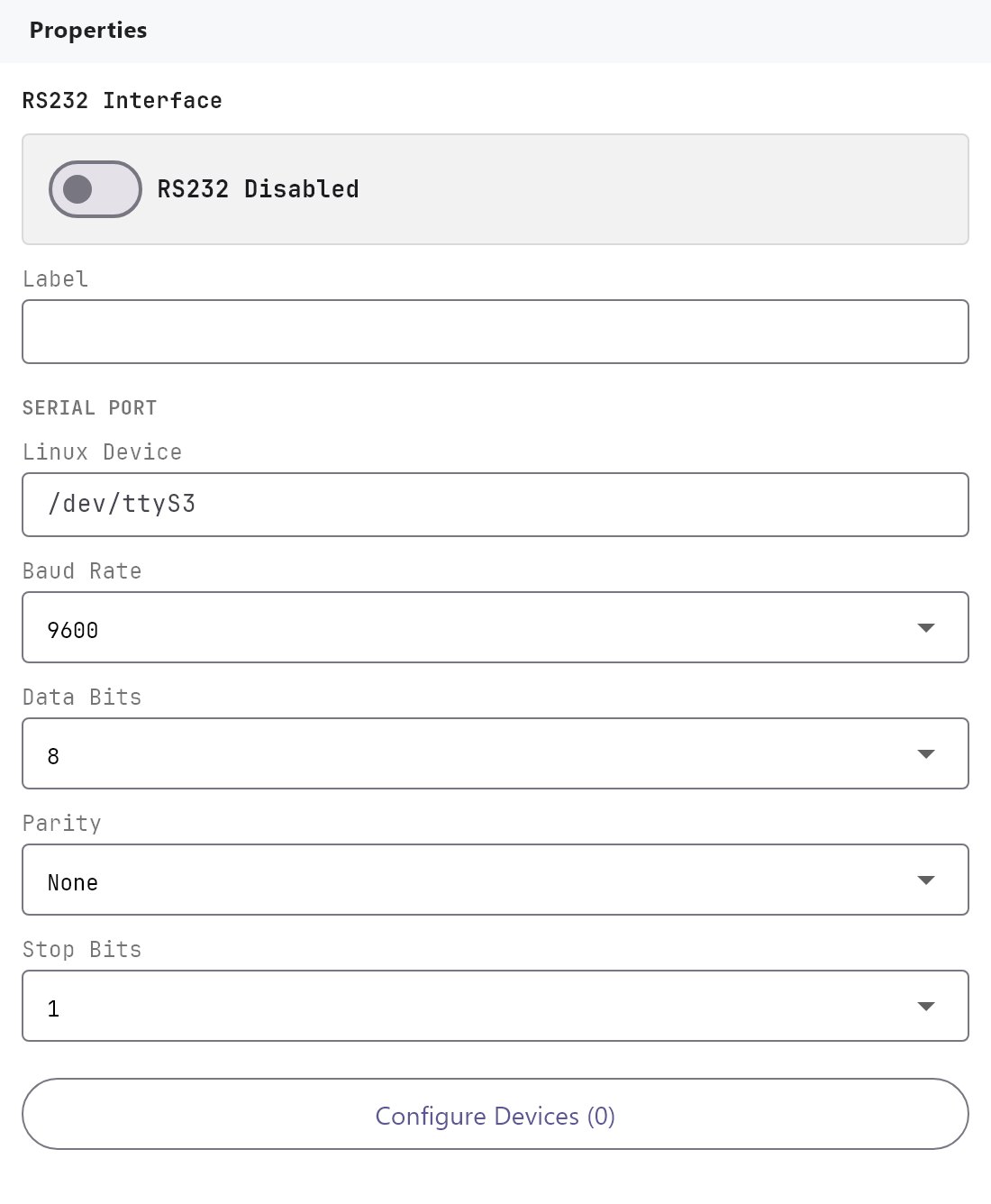
The RS232 interface is the gateway's second serial port. It speaks Modbus RTU exactly like the RS485 interface. The screen, the settings and the device dialog are the same, and only the default port differs. Find it under Server > Interfaces > RS232 Interface.
#What it does
When the interface is enabled and has devices, the gateway opens the serial port and reads every polled datapoint of every enabled device. Each reading becomes a reusable value for dashboard objects, the History Recorder, the MQTT Client and KNX. See Using system objects and reusable values.
The gateway runs the RS232 and the RS485 buses side by side, each with its own polling loop. A device configured on one bus is never polled on the other.
#Before you enable it
- RS232 is a point-to-point connection. Plan for one device on this port, not a shared bus.
- Know the device's serial settings (baud rate, data bits, parity, stop bits) and its Modbus Slave ID.
- Deploy to the gateway. Modbus runs only on the gateway, never on your PC.
#Settings
| Setting | What it does |
|---|---|
| Enabled | Switch, Off by default. When Off, the settings are kept but the gateway does not open the port. |
| Label | The name shown in the tree. Default RS232 Interface. |
| Linux device | The port's device path on the gateway. Default /dev/ttyS3. |
| Baud rate | 2400, 9600 (default), 19200, 38400, 57600, 115200 or 1500000. |
| Data bits | 7 or 8 (default 8). |
| Parity | None (default), Even or Odd. |
| Stop bits | 1 (default) or 2. |
| Modbus RTU devices | The button Configure RTU Devices (N) opens the device dialog. N is the number of devices. |
These settings must match the device exactly.
#Configure RTU Devices
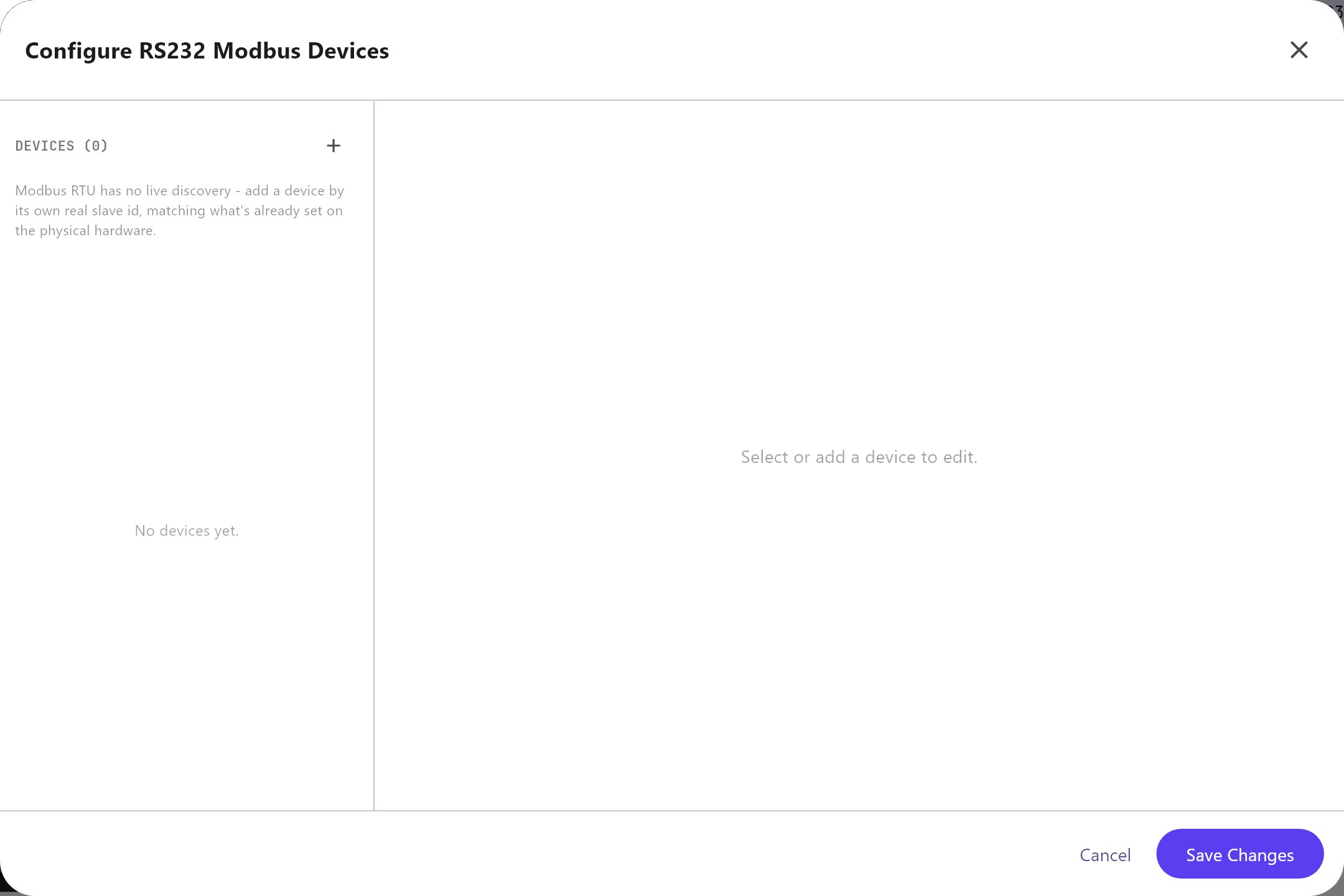
The dialog is identical to the one for RS485: a device list with Add, Clone and Remove, and three tabs, Device, Datapoints and Commands. The list of RS232 devices is separate from the RS485 list. A new device starts with Slave ID 1 and the profile Generic Modbus RTU.
Changes apply to the project as you make them. Cancel and Save Changes both just close the dialog.
Every field of the dialog is explained in Modbus devices and datapoints.
#Which services use the port
AC Manager, Genset Manager, UPS Manager and Solar Manager have a Modbus RTU Device dropdown that lists the devices of both buses. Pick an RS232 device there and the gateway reads it through this port. Water Tank Pump Control, the History Recorder and the canvas objects use its datapoints as system values.
#How it works on the gateway
The runtime treats RS232 and RS485 the same. It opens the Linux device, sets the baud rate, data bits, parity and stop bits, and polls in a loop with 2 seconds between cycles. See How it works on the gateway on the RS485 page for the details, including timeouts, stale values and KNX publishing. Two points are specific to this port:
- The interface is only opened when it is switched on and has at least one enabled device or polled datapoint.
- On a deploy, if the port is on but cannot be opened, the deploy still succeeds, and the gateway's deploy response notes RS232 enabled but not connected (check device path/wiring).
#Example
A device with Slave ID 1 on the RS232 port at 19200 baud, 8 data bits, even parity and 1 stop bit:
- Open Server > Interfaces > RS232 Interface and switch Enabled on.
- Leave Linux device
/dev/ttyS3, set Baud rate19200, Data bits8, ParityEven, Stop bits1. - Click Configure RTU Devices, click Add and edit the datapoints.
- Deploy, then open Diagnostics > Other Engines. The RS232 row should read READY with 1 device.
#Tips and common problems
- State is PLANNED in Diagnostics: the interface is off, has no enabled device with a polled datapoint, or the project is not deployed.
- State is OFFLINE: the port could not be opened. Check Linux device.
- No answer from the device: check the cable, the Slave ID and the serial parameters. Use the Modbus Register Test on the Diagnostics page and choose RS232 as the bus.
- A manager cannot find its device: the device must exist in this dialog before you pick it in the manager.