
4.29UPS manager
The gateway service that reads a Socomec Netys, Itys or Masterys UPS over RS232 or RS485 and sends it buzzer, battery test, alarm reset and off commands.
The UPS Manager is the service behind the UPS Panel and a value source for the UPS Panel (Generic). It names the Socomec UPS you added as a Modbus RTU device, and the gateway then reads its state and sends it commands.
#What it does
- Reads the UPS's state, alarm bits, load, battery and output figures once per poll cycle.
- Sends Buzzer On, Buzzer Off, Battery Test, Alarm Reset and UPS Off, then reads the UPS back.
- Controls one UPS per project.
#Before you enable it
- Open Server > Interfaces > RS232 Interface or RS485 Interface, turn Enabled on and set the serial parameters of the UPS (see RS232 interface and RS485 interface).
- Under Configure RTU Devices add a device with the driver Socomec - Socomec UPS JBUS/MODBUS and the UPS's Slave ID. Leave the device's own Enabled switch on. See Modbus devices and datapoints.
Most Netys, Itys and Masterys units use the standard RS232 DB9 port. RS485 is available only with the optional Masterys RS485 board.
#Settings
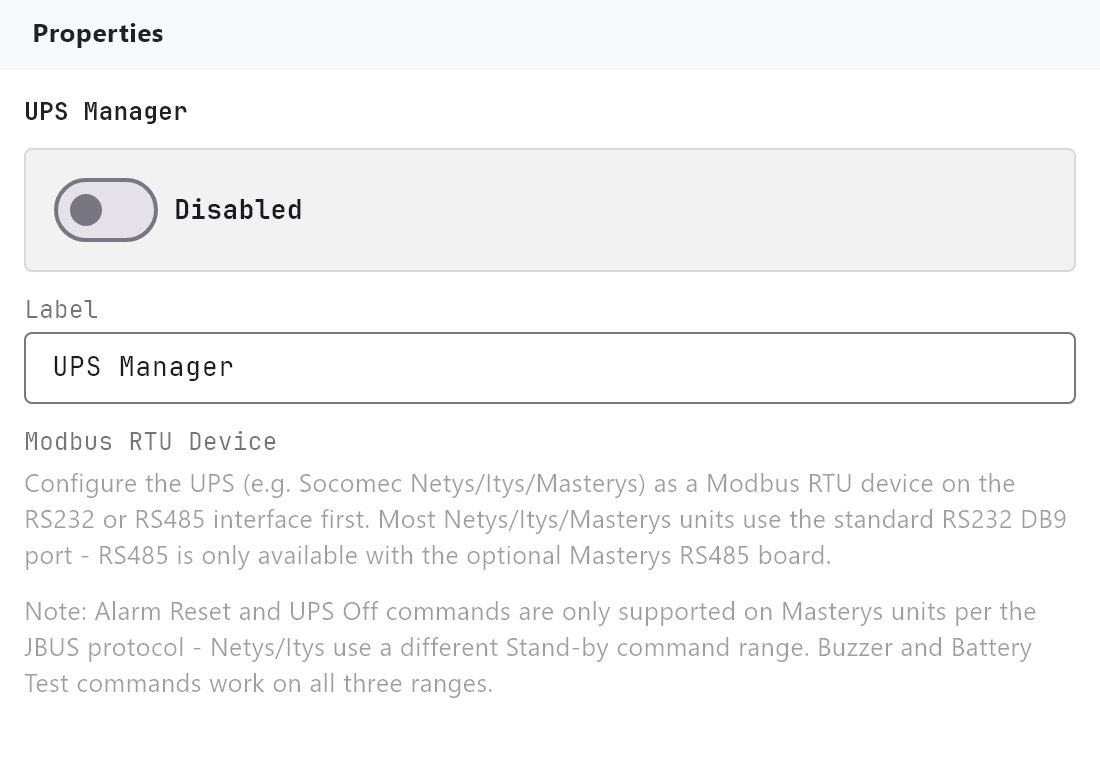
Open Server > Internal services > UPS Manager. Enabled is Off by default.
| Setting | What it does |
|---|---|
| Label | Name of the service in the Configurator. Default UPS Manager. It is also the prefix of the value names offered to other objects. |
| Modbus RTU Device | The UPS, listed as name (slave N, RS232) or name (slave N, RS485). RS232 devices are listed first. Nothing is polled and no command works until one is chosen. |
There is no capacity setting here. The capacity of the Load Power gauge is set on the UPS Panel (Generic).
#How it works on the gateway
- Polling: one read of 108 registers (addresses 0020h to 008Bh, function 03) per cycle, shared with the other Modbus devices on the same port. The cycle time is 2 seconds by default and cannot be changed in the Configurator.
- Mode:
On Batterywhen the load is on the battery,On Mainswhen the load is on the inverter, otherwiseBypass. - Alarm:
None, or when the UPS reports an alarm,Overload,Input voltageorAlarm active. - Values read (single-phase, L1 only): load percent (L1 and total), battery capacity, output voltage, output current, output frequency, battery voltage, temperature, remaining backup time, input mains voltage, output active power and input mains frequency.
- Commands: each command is one write (function 06) to register 05B0h, then the UPS is read again. Buzzer On, Buzzer Off and Battery Test work on all three Socomec ranges. Alarm Reset and UPS Off work on Masterys units only.
- Values for other objects: the decoded values are also published as system values named
ups:.... The Configurator offers them under the group UPS Manager in the Analog Value System Value list and in the UPS Panel (Generic) mapping, once a Modbus RTU Device is chosen.
#Example
A Masterys UPS on the RS232 port:
- RS232 Interface: Enabled on, device
Main UPS, driverSocomec - Socomec UPS JBUS/MODBUS, Slave ID1, with the baud rate, parity and stop bits the UPS uses. - UPS Manager: Enabled on, Modbus RTU Device
Main UPS (slave 1, RS232). - Add a UPS Panel to a page and deploy.
#Tips and common problems
- Every reading shows
--: the interface is not enabled, the serial settings or Slave ID do not match the UPS, or no Modbus RTU Device is chosen. - A button says "No Modbus RTU device configured for the UPS.": the manager has no device selected.
- Alarm Reset or UPS Off does nothing on a Netys or Itys: those commands are Masterys-only.
- Three-phase UPS: the manager decodes phase 1 only. Read the other phases as ordinary Modbus datapoints and map them in the UPS Panel (Generic).
- The driver adds starter datapoints that are polled like any other datapoint. The UPS Manager does not need them, so turn their Poll off or delete them to shorten the cycle.